
Getting the software
TRAFOLO software and license can be obtained from the download page:
https://trafolo.eu/download-page/
Minimum System Requirements
- 64-bit Windows® 10 or newer
- ≥ 16 GB of RAM memory
- ≥ 25 GB storage, preferably SSD
- No special requirement for a CPU; the selection can be based on the CPU Mark
- No special requirement for a GPU
- Full HD screen resolution (1920 x 1080)
Installation
TRAFOLO
By default, TRAFOLO does not require admin permissions and is installed for an individual user. It will be located in “C:\Users\%username%\AppData\Local\Programs\Trafolo”.
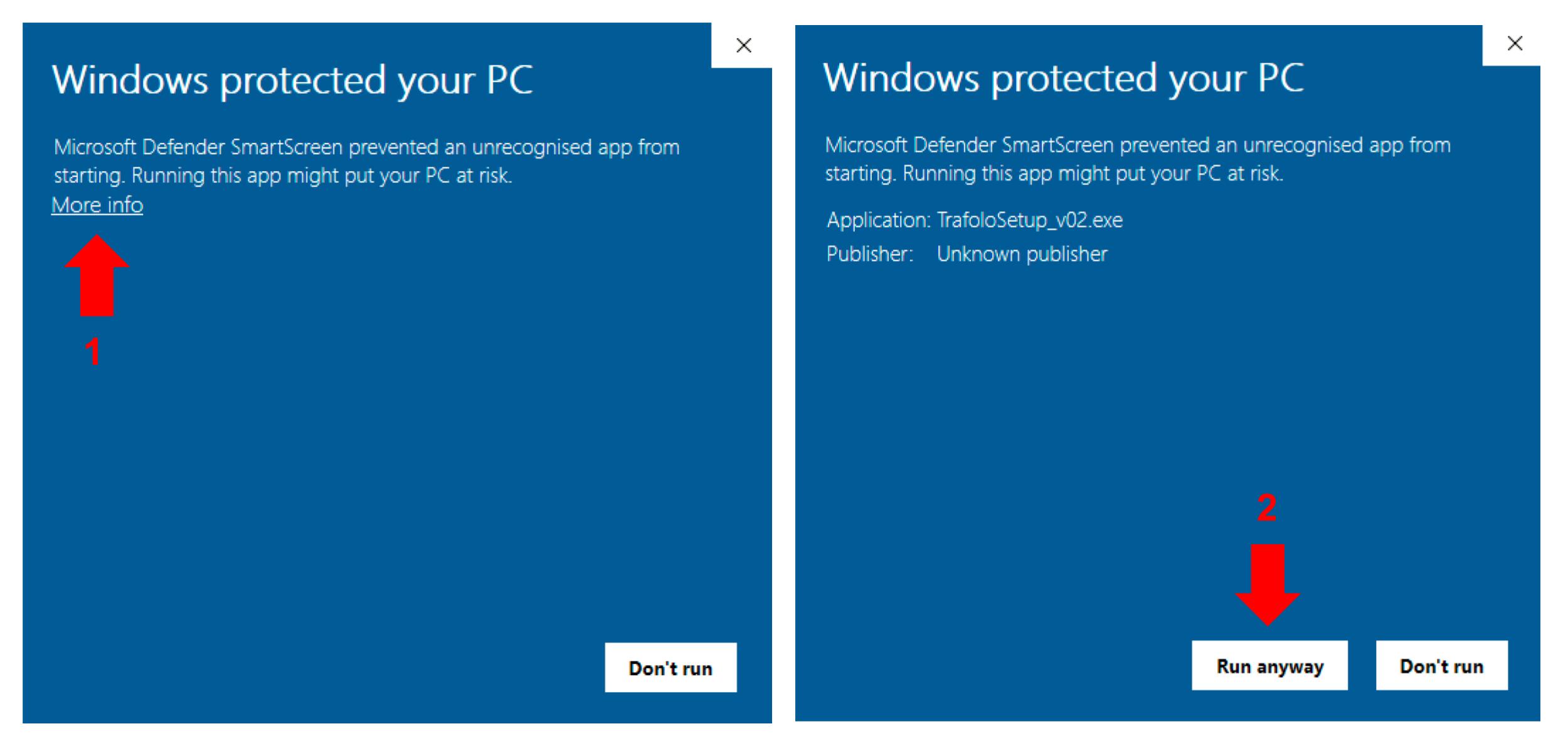
During the installation, you may get a message stating: “Windows protected your PC”. Installing software from our sources will not put your computer at risk, and you can safely ignore this message and continue with your installation:
- Select the More Info link.
- Click the Run anyway button.
The Windows Defender is a way for Microsoft to alert you that an app seems suspicious. In this case, it is a false-positive message.
Third-party software
Automatic installation
Once the installer finishes, the user must provide TRAFOLO with the information about the required third-party open-source software. It can be done in two ways.
- Downloading and installing the Third-party software automatically using the Software Downloader. Select packages that must be set automatically and click the Download button. The default installation directory is “C:\Users\%username%\AppData\Local\Programs\Trafolo_third_party”. Note that if TRAFOLO gets uninstalled from the system, this Third-party software is not removed automatically.
- Set manually by providing paths to executable locations. In this case, ensure that the actual version corresponds to the suggested one.

TRAFOLO Software Downloader
IMPORTANT! When installing ElmerFEM, it might ask to install MPI used for parallelization. The installer will run with admin permissions.
Manual installation
Use the links (mirrors) below to download and install third-party software.
ParaView. Unzip it into “C:\Users\%username%\AppData\Local\Programs\Trafolo_third_party”.
ElmerFEM. Unzip it into “C:\Users\%username%\AppData\Local\Programs\Trafolo_third_party”. To enable multicore processing, install Microsoft MPI, which is located in redist/msmpisetup.exe, it requires admin rights.
GMSH [Optional]. Unzip it into “C:\Users\%username%\AppData\Local\Programs\Trafolo_third_party”.
Updates
TRAFOLO updates ensure users can access the latest features, improvements, and bug fixes. By default, checking for updates happens automatically at launch. This option can be changed in the application’s settings.
TRAFOLO developers try to maintain compatibility with older use cases, but sometimes changes to the software may necessitate action from the user. When this occurs, the information will be provided in the release notes accompanying the update.
If TRAFOLO detects that any of the third-party software packages it relies on have been updated, a window will open to notify you. To update the outdated software:
- Look for the software package(s) marked as outdated in the notification window.
- Click the “Download & Install” button to begin the update process.
- Once the update is complete, click “Apply” to finalize the changes and restart TRAFOLO if necessary.

ParaView, ElmerFEM, or GMSH update request
Beta updates
Beta updates offer early access to new features, enhancing user experience. Though sometimes users might encounter minor issues, they enable valuable feedback for developers to refine and optimize software, promoting smoother final releases and continuous innovation.
To enable Beta updates:
- go to File -> Settings
- enable “I want to receive Beta updates”
- go to Help -> Check For Updates
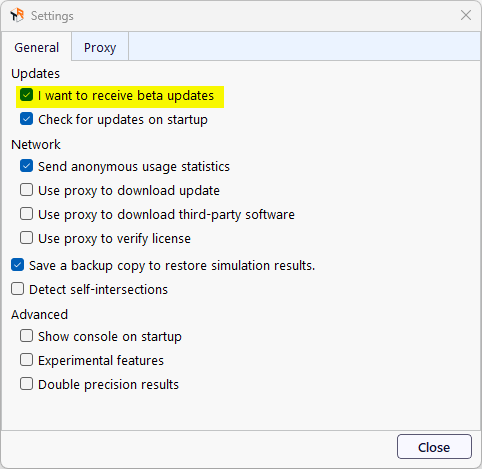
Accept receive Beta updates
Troubleshooting
Permissions
When installed in the default path, TRAFOLO does not require administrator permissions. Windows Defender might ask for permission if a user installs the software or its components in the system directory.
If you encounter such an error, check in the file C:\Users\%username%\AppData\Roaming\Trafolo\settings.cfg for such paths.
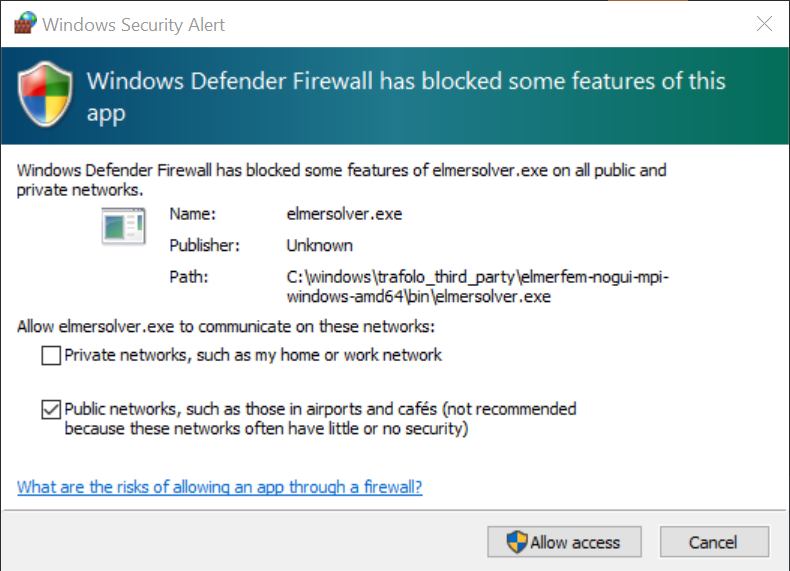
Windows Defender
Log files
TRAFOLO stores log files that provide valuable information about encountered issues. These files can be accessed in two ways:
- Through the software, go to Help -> Open Log Directory
- Direct path C:\Users\%username%\AppData\Roaming\Trafolo\logs
VCRUNTIME140.dll was not found
Missing a dependency, download and install Microsoft Visual C++ Redistributable.
msmpi.dll was not found
ElmerFEM requires Windows MPI (Message Passing Interface) for simulations on multicore CPUs.
If you install ElmerFEM using TRAFOLO’s Software downloader, then TRAFOLO will display a notification and direct you to the MPI installer. In case you miss it or are installing ElmerFEM manually, then locate this executable inside the ElmerFEM folder under redist/msmpisetup.exe. Please be aware that the MPI installation requires administrative privileges.
Antivirus or firewall flags software as a threat
Our simulation package includes many built-in and third-party tools developed by open-source communities and institutions, which can occasionally be falsely flagged as threats by security software. You can compare scan results across different security tools here.
If you encounter any other security-related issues with the packages, inform us at info@trafolo.eu.