
Console
The console in TRAFOLO is a useful tool that provides real-time information about the status of the software and ongoing simulations. It displays messages, warnings, errors, and other important details that can help you monitor the progress of your simulation and diagnose any issues that may arise.
To open or close the console, click on the Console icon in the bottom left corner of the TRAFOLO interface. This will toggle the visibility of the console window, allowing you to view or hide the console as needed.

TRAFOLO Console
Log files
Log files are essential for understanding the events during a simulation run, including any errors or issues that might arise. They store information about user actions, ElmerFEM output, and all errors that get caught. While log files don’t store parameter values or design details, they can be helpful for debugging issues or as a reference for recalling information about a specific simulation run.
To access the TRAFOLO log files, you can use either of the following methods:
- Within TRAFOLO software, click on Help, and then select “Open Log Directory.” This will open the folder containing the log files in your file explorer.
- Alternatively, you can directly navigate to the log directory by opening the file explorer and going to the following path:
C:\Users\%username%\AppData\Roaming\Trafolo\logs
Bug reports
TRAFOLO’s built-in reporting system makes it easy for users to provide feedback, report issues, or suggest improvements to the software. The development team at TRAFOLO values your input and appreciates your help in making the tool better and more efficient for everyone.
To send a message to the TRAFOLO team, follow these steps:
- Click on the “Bug” icon in the top right corner of the TRAFOLO interface.
- A new window will open where you can describe the issue or suggestion.
- You can include screenshots by clicking the “Take Screenshot” button. This will automatically capture the current state of the software and attach the screenshot to your message.
- The reporting system can also include the current log file, which can help the TRAFOLO team diagnose any issues you may be experiencing.
- Click the “Send” button to submit your message, screenshots, and log files to the TRAFOLO team.
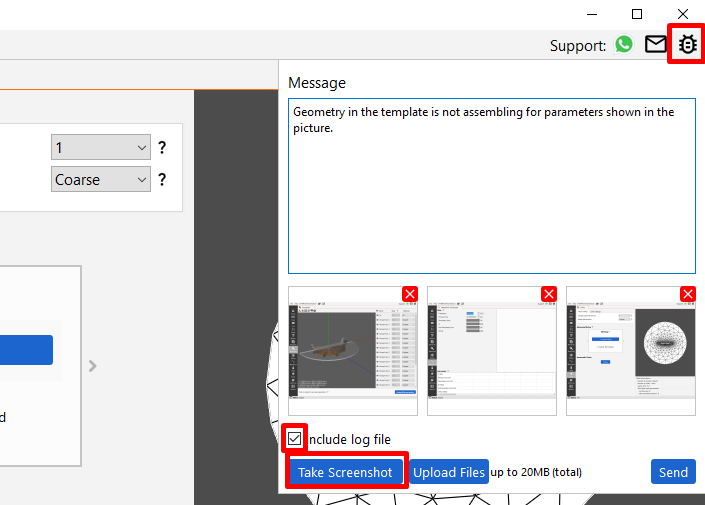
Send issue report to TRAFOLO dev team
The TRAFOLO team will review your feedback and work on addressing any reported issues or incorporating your suggestions into future updates. Your input is crucial in helping improve the software and ensuring that TRAFOLO remains a reliable and powerful tool for magnetics design and analysis.